

You hit send. Then you saw the typo. Or worse, the wrong name. Your heart drops for a second. Don’t panic.
This guide shows you how to unsend message on iPhone using Apple’s built-in Undo Send and Edit Message tools. You’ll also learn how to edit texts, manage unread messages, schedule texts, and fix common sending errors, all in simple steps.
How to Unsend Message on iPhone
Apple added a real undo send iPhone message feature starting with iOS 16, letting you take back a text within a short window. This works for unsend iMessage only, not regular green-bubble SMS texts sent to Android users.
Here’s the good news: you don’t need a third-party app. The Edit Message feature iPhone and Undo Send option are built right into the Messages app.
Steps to unsend a message:
- Open the Messages app and find the sent iMessage
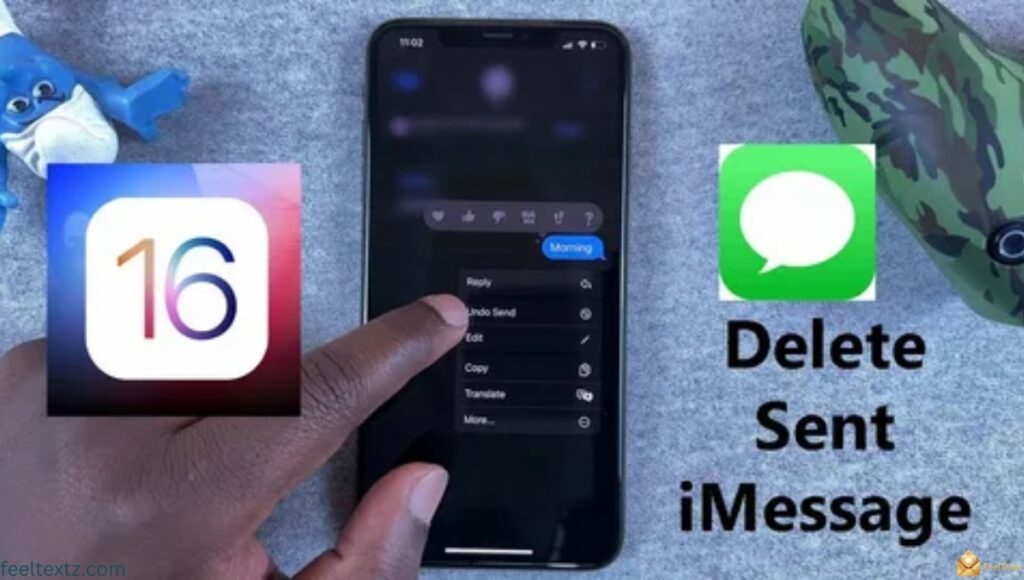
- Long press message iPhone bubble (tap and hold message) until options appear
- Tap Undo Send from the popup menu
- The message disappears from both your screen and the recipient’s
How Long Do You Have to Unsend Message on iPhone
You get roughly a 2-minute window to fully recall a message. This is Apple’s official unsend message time limit, so act fast once you spot a mistake.
Does Recall Work on iPhone 13, 14, 15, 16 or 17
- How to unsend message on iPhone 13, 14, 15, 16, 17, all work the same way, as long as they run iOS 16 or later
- No hardware limitation, it’s purely an iOS version requirement
- Always check for the latest iPhone software update in Settings
Unsend on iPhone to Android or Group Chat
- How to unsend message on iPhone to Android isn’t possible, SMS/green bubbles can’t be recalled
- How to unsend message on iPhone group chat works only if every member uses iMessage
- Unsend message not working? Check if the chat is blue (iMessage) not green (SMS)
How to Edit Message in iPhone
Sometimes you don’t want to delete, you just want to fix a word. That’s where message editing iPhone comes in, and it’s just as fast as recalling a text.
Apple gives you a 15 minute edit window iMessage, much longer than the undo option, so there’s more room to correct mistakes calmly.
Steps for how to edit a message on iPhone:
- Long press message iPhone bubble you want to fix
- Tap Edit
- Change the text and tap the checkmark to save
- A small “Edited” label appears under the message
How to Edit a Sent Text on iPhone Without Recipient Knowing
There’s no way to hide the edit, Apple always shows an “Edited” tag. This keeps iMessage vs SMS communication transparent for both sides.
How to Delete All Message on iPhone
Clearing clutter is different from unsending. This removes messages from your device only, not the recipient’s.
Deleting old chats also frees up storage and keeps your Messages app organized without needing an update.
Steps to delete all messages:
- Open Settings > Apps > Messages
- Tap Message History and select “Delete All Messages”
- Confirm the action when prompted
How to Find Unread Text Messages on iPhone
Missed a text buried under others? iPhone lets you filter and spot unread threads instantly.
This is especially useful in busy group chats where new messages get pushed down fast.
- Open Messages and swipe right on the list
- Unread chats show a blue dot next to them
- Or go to Filters > Unread to see them all together
How to Remove Yourself from a Group Text iPhone
Group chats can get noisy. Thankfully, leaving one is simple, as long as it’s an iMessage group.
SMS-based group texts (green bubble) don’t support this option due to carrier limitations.
- Open the group chat and tap the group name at top
- Tap the info icon, then scroll down
- Select Leave this Conversation
How to Prioritize Text Messages on iPhone
Not every text needs an instant reply, but important ones shouldn’t get lost either.
Using pins and notification settings helps you focus on what matters first.
- Long press message iPhone thread from a key contact
- Tap Pin to keep it at the top
- Adjust notification priority in Settings > Notifications > Messages
How to Make a Text Chain on Iphone
A text chain (group message) lets you talk to multiple people in one thread at once.
It’s useful for family updates, event planning, or quick group decisions.
- Tap the compose icon in Messages
- Add multiple contacts in the “To” field
- Type your message and hit send, it creates a shared thread
How to Schedule Messages in Iphone
Want a text to send later without remembering manually? iOS now supports built-in scheduling.
This is perfect for reminders, birthday texts, or messages sent across time zones.
- Type your message but don’t send yet
- Long press the send arrow
- Tap Send Later and pick date and time
How to Set Up Automatic Text on Iphone
Automatic replies help when you’re driving, sleeping, or unavailable.
This uses iPhone’s Focus mode combined with auto-reply settings.
- Go to Settings > Focus
- Choose a Focus mode (like Driving or Sleep)
- Turn on Auto-Reply and set a custom message
How to Unsend Email on Iphone
Unlike texts, unsend email on iPhone relies on Mail app settings, not Messages.
The logic is similar, a short delay lets you cancel before it truly sends.
- Open Mail app > Settings > Undo Send Delay
- Choose a delay: 10, 20, or 30 seconds
- After sending, tap Undo Send at the bottom of the screen
Unsend vs Edit vs Delete, Quick Comparison
| Action | Time Limit | Requirement | Works On |
| Undo Send (Unsend) | ~2 minutes | iMessage only, iOS 16+ | iPhone, unsend on iPad |
| Edit Message | ~15 minutes | iMessage only, iOS 16+ | iPhone, iPad |
| Delete for Everyone | Instant | iMessage only | Both devices |
| Delete (Local) | Anytime | Any message type | Your device only |
Why Doesn’t Unsend Always Work?
Sometimes the option is missing entirely, usually due to outdated software or SMS-only chats.
Here’s what typically causes it and how to fix it fast.
iPhone Unsend Option Missing
- Confirm the chat is iMessage (blue bubble), not SMS (blue bubble green bubble difference matters)
- Make sure both devices meet recipient device compatibility
- Check that you’re within the time window before trying retract message iPhone
Update iOS to Unsend Messages
- Go to Settings > General > Software Update
- Install the latest version to unlock iPhone models that support unsend
- Restart your phone after updating
Read Also: 80607 Text Message: Full Guide to This SMS Short Code
Frequently Asked Questions
What does it mean when it says free msg unable to send?
This usually means a cancel sent message attempt failed due to carrier issues, not related to how to unsend message on iphone settings.
What does it mean when your iPhone says free msg unable to send message message blocking is active?
It means the recipient has blocked messages from your number. This differs from remove message iPhone or unsend errors entirely.
How to fix free message unable to send message message blocking is active?
Contact your carrier to confirm blocking status, or ask the recipient to unblock you, this isn’t linked to how to unsend message on iphone.
Why do I keep getting a message saying “unable to send message”?
This often points to network issues, not the how to unsend message on iphone feature. Check signal, iMessage status, or restart your device.
Conclusion
Mistakes happen, a wrong word, a rushed text, a message sent too soon. Knowing how to unsend message on iphone gives you a quick, stress-free fix using Apple’s built-in Undo Send and Edit Message tools. Whether it’s a typo, a missed detail, or a message meant for someone else, you now have the steps to correct it within minutes.
Keep your iOS updated, remember the time limits, and text with confidence. Every message deserves a second chance, so go ahead, fix it, and send it right.