

It’s 11 PM and you don’t want to disturb anyone. But you also don’t want to forget to send that message tomorrow morning. Sound familiar? You’re not the only one searching for how to schedule messages on WhatsApp instead of setting a phone alarm just to hit send whatsapp schedule message.
This guide covers how to schedule message in WhatsApp on Android, iPhone, and WhatsApp Business, plus whether you can you schedule messages on WhatsApp natively at all. If you’ve been wondering how to send schedule message in WhatsApp without staying up late, here’s every method that actually works.
Can You Schedule Messages on WhatsApp?
No, WhatsApp does not offer native scheduling for personal accounts. There is no built-in button that lets you pick a date and time for a text to a specific contact.
WhatsApp Business only supports automated Greeting and Away Messages, which are not the same as true scheduled sends. For real scheduling, you need a workaround.
How to Schedule Messages on WhatsApp (Overview)
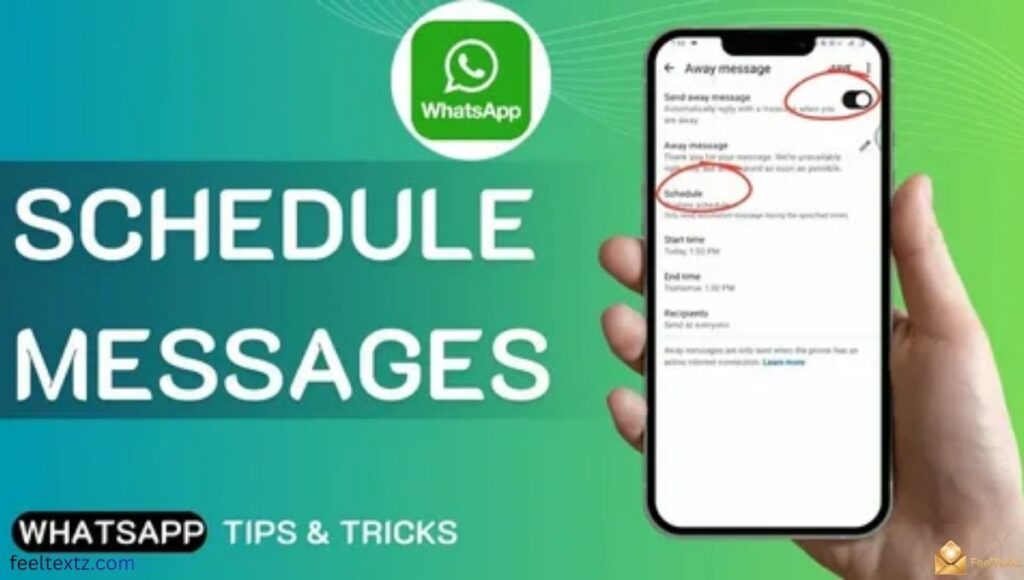
Since WhatsApp has no native scheduler for personal chats, people rely on three approaches: WhatsApp Business auto-replies, third-party apps, or built-in phone automation tools.
Here’s a quick breakdown of what works where:
- WhatsApp Business – Greeting/Away Messages only, not full scheduling
- Android – third-party apps like SKEDit for true scheduled sends
- iPhone – Siri Shortcuts and the Automation feature
- Teams & Businesses – a WhatsApp CRM for scheduling at scale
WhatsApp Par Schedule Message Kaise Kare
Agar aap simple tareeqa dhoond rahe hain, Android par SKEDit jaisi app use karein ya iPhone par Shortcuts app se automation set karein. WhatsApp khud koi built-in schedule option nahi deta.
How to Schedule Message in WhatsApp Using WhatsApp Business
WhatsApp Business lets you automate replies through Business Tools settings, even though it’s not true message scheduling. It’s the closest native option WhatsApp offers.
This works well for setting expectations during off business hours, but it won’t send a custom, timed message to one specific person.
Setting Up Greeting Message
- Open WhatsApp Business and go to Settings > Business Tools > Greeting Message
- Toggle it on and write your custom greeting
- Choose recipient preferences (all contacts or new chats only)
Setting Up Away Message
- Go to Settings > Business Tools > Away Message
- Toggle on and set your business hours or custom time periods
- Write the away message and save your recipient settings
WhatsApp Schedule Message iPhone
For iPhone users, there’s no direct app-store option, so Siri Shortcuts and the Shortcuts app are the go-to workaround. It won’t be fully automatic, but it gets close.
This is currently the most reliable free WhatsApp schedule message method available on iOS.
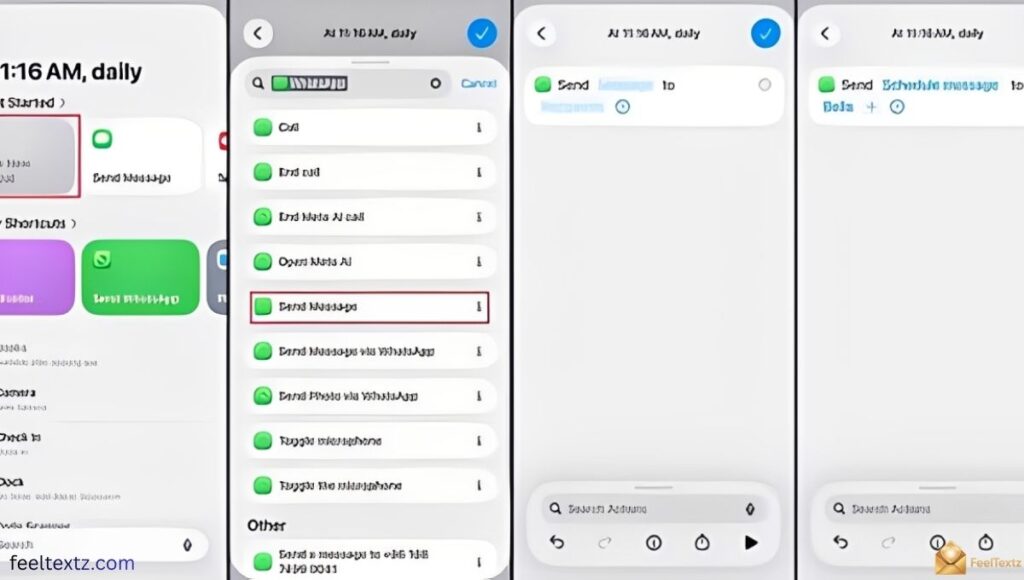
WhatsApp Schedule Message iPhone Shortcut, Step by Step
- Open the Shortcuts app and create a custom shortcut
- Add an action to open WhatsApp and prefill your message and contact
- Set up Automation (iOS) to trigger the shortcut at your chosen time
- Confirm before sending, since iPhone usually needs one final tap
WhatsApp Schedule Message Android

Android users have more flexibility thanks to accessibility permissions that let apps act on your behalf inside WhatsApp.
SKEDit (Android) remains the most popular pick, though apps like Wasavi and various autoresponder for WA tools offer similar functionality.
How to Set WhatsApp Schedule Message on Android
- Download SKEDit from the Google Play Store
- Grant the accessibility permissions it asks for
- Open the app, select WhatsApp, and compose your message
- Pick the contact, date, and time
- Enable “ask before sending” or let it auto-send
How to Schedule Messages on WhatsApp Without Any App
If you’d rather not install anything, your only real option is your phone’s built-in automation, Shortcuts on iPhone, since Android has no native equivalent without an app.
- Use the Shortcuts app (iPhone) with Automation instead of a third-party download
- Check your phone’s digital wellbeing or routine tools for basic reminders
- Set a manual reminder as a fallback if automation isn’t reliable enough
WhatsApp Schedule Message Samsung
Samsung phones run Android, so the same SKEDit method applies, plus Samsung’s own Routines feature can trigger reminders.
- Install SKEDit like any other Android device
- Grant accessibility permissions when prompted
- Alternatively, use Samsung Routines to set a reminder notification at your chosen time
Free WhatsApp Schedule Message Options
Most scheduling tools worth using are free for basic personal use, with paid tiers reserved for teams.
- SKEDit (Android) – free with optional premium features
- Shortcuts app (iPhone) – completely free, built into iOS
- WhatsApp Business Greeting/Away Messages – free, native automation
WhatsApp Web Schedule Message
WhatsApp Web mirrors your phone’s WhatsApp and has no separate scheduling feature of its own. Any scheduling still depends on the same phone-based apps or automation described above, since WhatsApp Web simply reflects your account in real time.
WhatsApp Business Schedule Message for Teams & Sales
For sales teams managing dozens of contacts, individual scheduling apps don’t scale well. This is where a proper WhatsApp CRM like folk CRM becomes useful.
A CRM adds contact management, team collaboration, and broadcast message capability that personal apps can’t offer, closer to the WhatsApp API used by larger businesses.
- Centralized contact-based reminders instead of per-device apps
- Enterprise-grade integration with compliance features
- Shared visibility so the whole team knows what’s scheduled
Best WhatsApp Schedule Message Apps Compared
| Method | Platform | Free? | Best For |
| WhatsApp Business (Greeting/Away) | Android & iPhone | Yes | Auto-replies, not true scheduling |
| SKEDit | Android | Yes (premium available) | Individual scheduled messages |
| Shortcuts app | iPhone | Yes | iOS automation and reminders |
| Wasavi / autoresponder for WA | Android | Varies | Alternative scheduling apps |
| folk CRM (WhatsApp CRM) | Web/Business | Paid | Sales teams, 20–50 people |
Read Also: Out of Office Message in Teams: Ready-to-Copy Examples for Every Occasion
Frequently Asked Questions
How do I set a time for a message to send on WhatsApp?
WhatsApp itself has no time-picker for personal messages. Use SKEDit on Android or Shortcuts on iPhone to set a whatsapp schedule message manually.
Why does WhatsApp not have scheduled messages?
WhatsApp hasn’t added native scheduling for personal chats yet. That’s why a whatsapp schedule message currently needs a third-party app or automation tool.
How do I schedule a message to send later?
Pick your platform’s method, SKEDit for Android or Shortcuts for iPhone, then set the contact, message, date, and time.
Is there an option to send later on WhatsApp?
Not built into the app itself. A whatsapp schedule message still relies on external tools, since WhatsApp treats every chat as sent instantly.
Conclusion
A whatsapp schedule message isn’t built into the app yet, but the workarounds are simple once you know where to look. If you’ve been wondering how to schedule messages on WhatsApp, the answer depends on your phone: SKEDit for Android, Shortcuts for iPhone, or Business auto-replies for basic automation. Knowing how to schedule message in WhatsApp saves you from late-night sending and awkward-timed texts.
Whether you need to schedule message in WhatsApp for one contact or figure out how to send schedule message in WhatsApp for a whole team, there’s a method above that fits. And yes, can you schedule messages on WhatsApp? Not natively, but absolutely with the right tool.